---
title: Live Chat Quick Guide
description: Learn how to collaborate with agents, manage notifications, use the live chat feature
---
[Skip to content](https://support-portal.klaunch.io/knowledge/live-chat-quick-guide#main-content)
English
Show submenu for translations
![logo-text-black.png\]](https://support-portal.klaunch.io/hs-fs/hubfs/logo-text-black.png?height=40&name=logo-text-black.png)
- [Home](https://7939462.hs-sites.com/)
Open main navigation
Close main navigation
- [Home](https://7939462.hs-sites.com/)
- English
Show submenu for translations
- [Home](https://support-portal.klaunch.io/)
[Home](https://support-portal.klaunch.io/?hsLang=en)
What's on your mind?
- There are no suggestions because the search field is empty.
1. [Help Center](https://support-portal.klaunch.io/knowledge?hsLang=en)
2. [Engagement](https://support-portal.klaunch.io/knowledge/engagement?hsLang=en)
3. [Chat](https://support-portal.klaunch.io/knowledge/engagement?hsLang=en#chat)
# Live Chat Quick Guide
## Learn how to collaborate with agents, manage notifications, use the live chat feature
Agents can do live chat by going to the CHATS page, selecting a chat, and start typing on the live chat textbot at the bottom, as shown below.
Note that the chats that have a need for an agent are automatically placed in the “Waiting for Agent” queue, to make it easier for agents to find them. Read more on how to [set chats in the “Waiting for Agent” queue](https://smartbot360.com/documentation/agentqueue).
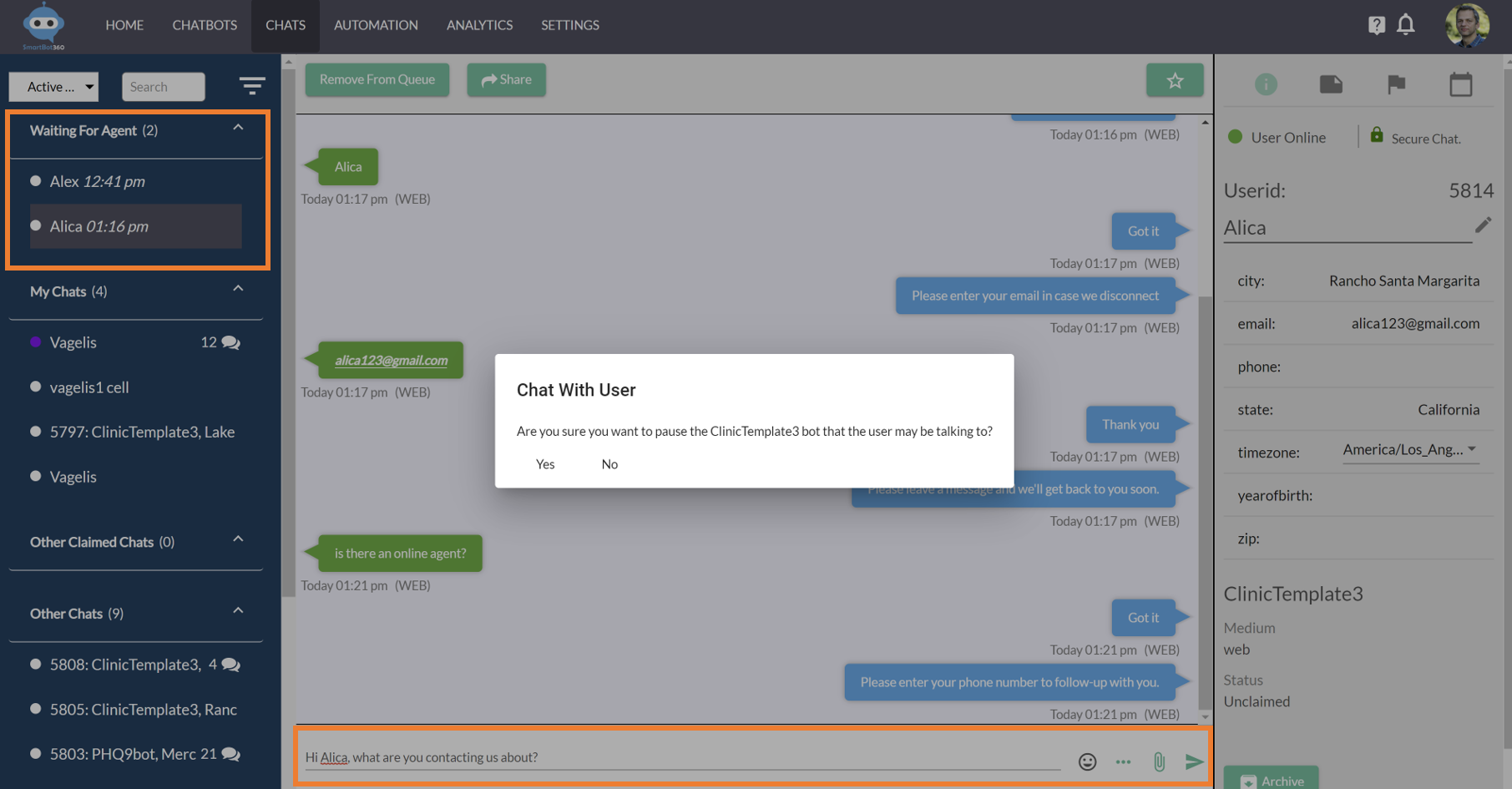
On the right of the CHATS page, you can see user profile fields of the user. You can change which ones to view by clicking on the pencil icon.
You can prepare frequent “quickreplies” by clicking on the “…” button next to the live chat textbox. You can also send attachments to the user.
### Collaborate with other agents
You can collaborate with other agents by claiming a chat, clicking on the star icon on the top right corner. You can also share a chat with another agent by clicking on the Share button, for example, if the other agent has more relevant expertise to answer a user question. You can also add a note to a chat on the right panel.
### Notifications
If your organization does not have high live chat traffic, you can use notifications to know when an agent has to jump to a live chat session. Learn more on how to set [notifications](https://smartbot360.com/documentation/notifications).
### Live Chat Evaluation
[You can have agents trigger a popup to the users to evaluate their live chat experience.](https://smartbot360.com/documentation/solicit-evaluation-surveys)
- [Planning](https://support-portal.klaunch.io/knowledge/planning?hsLang=en#main-content)
- [Ideas & Design](https://support-portal.klaunch.io/knowledge/planning?hsLang=en#ideas-design)
- [Misc](https://support-portal.klaunch.io/knowledge/planning?hsLang=en#misc)
- [Training](https://support-portal.klaunch.io/knowledge/training?hsLang=en#main-content)
- [SMS Messaging](https://support-portal.klaunch.io/knowledge/training?hsLang=en#sms-messaging)
- [Flow Bots](https://support-portal.klaunch.io/knowledge/training?hsLang=en#flow-bots)
- [Bots](https://support-portal.klaunch.io/knowledge/bots?hsLang=en#main-content)
- [Management](https://support-portal.klaunch.io/knowledge/bots?hsLang=en#management)
- [Building](https://support-portal.klaunch.io/knowledge/bots?hsLang=en#building)
- [Advanced](https://support-portal.klaunch.io/knowledge/bots?hsLang=en#advanced)
- [Engagement](https://support-portal.klaunch.io/knowledge/engagement?hsLang=en#main-content)
- [Chat](https://support-portal.klaunch.io/knowledge/engagement?hsLang=en#chat)
- [Campaigns](https://support-portal.klaunch.io/knowledge/campaigns?hsLang=en#main-content)
- [SMS Campaigns](https://support-portal.klaunch.io/knowledge/campaigns?hsLang=en#sms-campaigns)
- [Analytics](https://support-portal.klaunch.io/knowledge/analytics?hsLang=en#main-content)
- [Export Data](https://support-portal.klaunch.io/knowledge/analytics?hsLang=en#export-data)
- [APIs](https://support-portal.klaunch.io/knowledge/apis?hsLang=en#main-content)
- [Webhooks](https://support-portal.klaunch.io/knowledge/apis?hsLang=en#webhooks)
- [Integrations](https://support-portal.klaunch.io/knowledge/integrations?hsLang=en#main-content)
- [Supported](https://support-portal.klaunch.io/knowledge/integrations?hsLang=en#supported)
- [Home](https://7939462.hs-sites.com/)
[](https://www.klaunch.io/explore-trial)
Let's have a conversation.
Copyright © 2026, LST Health Tech