---
title: Create Text Campaigns
description: Learn how to create your first text campaign through any SMS carrier!
---
[Skip to content](https://support-portal.klaunch.io/migration/knowledge/create-text-campaigns#main-content)
English
Show submenu for translations
![logo-text-black.png\]](https://support-portal.klaunch.io/hs-fs/hubfs/logo-text-black.png?height=40&name=logo-text-black.png)
- [Home](https://7939462.hs-sites.com/)
Open main navigation
Close main navigation
- [Home](https://7939462.hs-sites.com/)
- English
Show submenu for translations
- [Home](https://support-portal.klaunch.io/)
[Home](https://support-portal.klaunch.io/?hsLang=en)
What's on your mind?
- There are no suggestions because the search field is empty.
1. [Help Center](https://support-portal.klaunch.io/migration/knowledge?hsLang=en)
2. [Campaigns](https://support-portal.klaunch.io/migration/knowledge/campaigns?hsLang=en)
3. [SMS Campaigns](https://support-portal.klaunch.io/migration/knowledge/campaigns?hsLang=en#sms-campaigns)
# Create Text Campaigns
## Learn how to create your first text campaign
Consider the scenario where you want to send a text message (texting blast) or trigger a chatbot to a set of users, at a specific time. For example, send a message to all dental patients that they should use their remaining end-of-year insurance budget allocation.
This functionality is available to Enterprise plans that also have [Twilio integration for texting (SMS)](https://smartbot360.com/documentation/twilio-integration-for-sms-and-whatsapp).
### Step 1: Select users to send out message or chatbot
Go to AUTOMATION page, then to Campaigns.
The simplest way to select a subset of users is by filtering based on a [flag](https://smartbot360.com/documentation/flags). Alternatively, you can click on the “Advanced Filters” button to filter based on user profile fields.
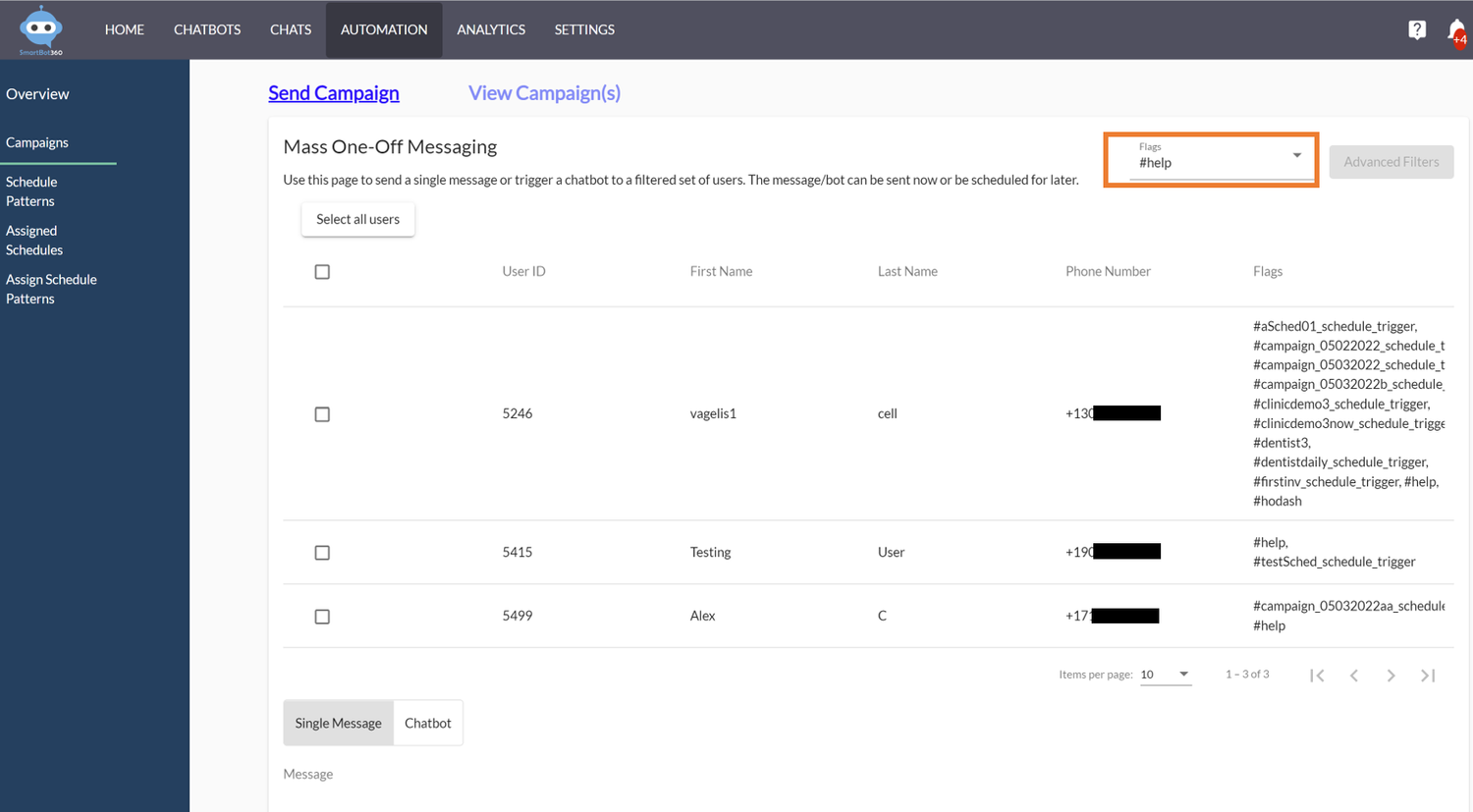
If the target users are not already in the system, we can first upload them from a csv file, from SETTINGS→Users→“Upload User CSV”. To be able to filter these new users in the Campaigns page, the easiest way is to assign to them a unique flag while uploading, such as “leads05202022”. See the formatting help for uploading a csv file of users with flags next to the “Upload User CSV” button.
Select the users to include in the campaign using the checkboxes on the left.
### Step 2: Create a single message or select a chatbot for the campaign
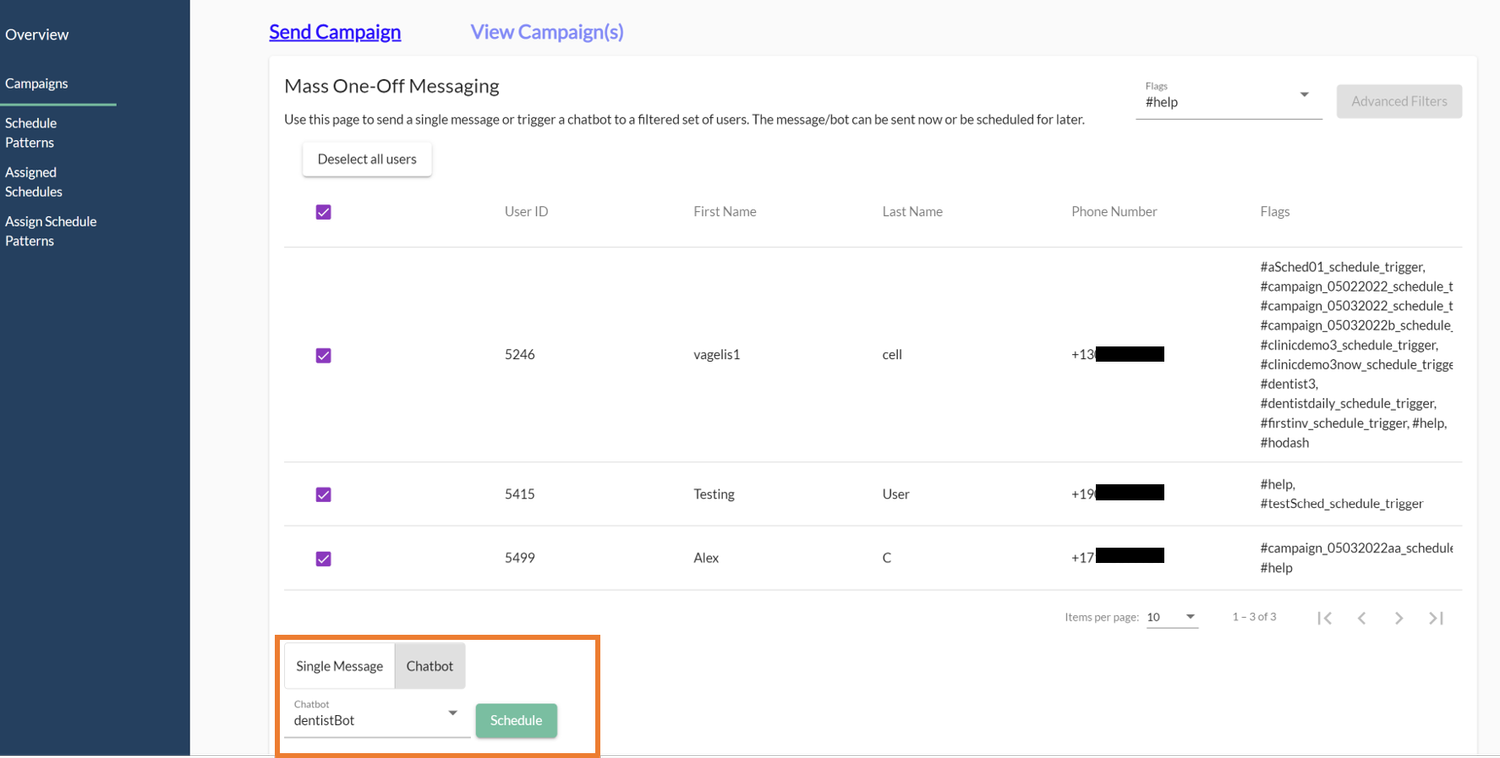
You can send out a single message or trigger a chatbot you created before. To send out a single message, compose the message as shown below.
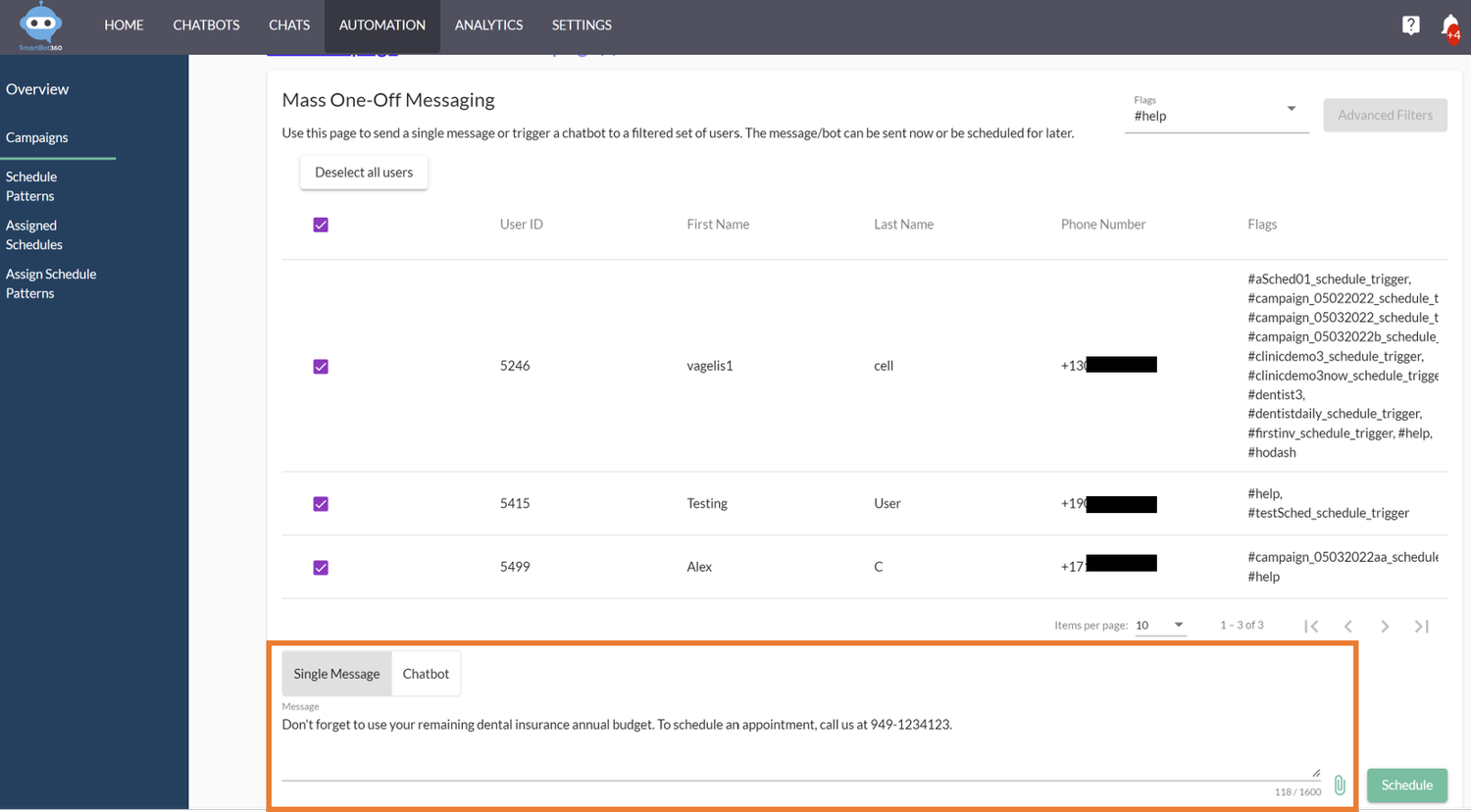
Or trigger a chatbot as shown below.
### Step 3: Schedule campaign to go out now or at a later time
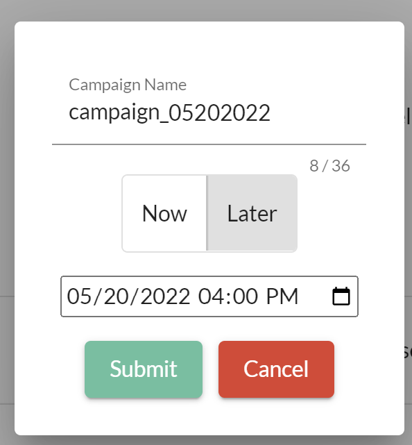
Click the Schedule button and then select a time for the campaign to be triggered, and a name that we will later use to monitor the response rate. Click Submit.
### Step 4: View Campaign Analytics
You can view the message or chatbot assigned to a campaign and its creation time by clicking on the “View Campaign(s)” link.
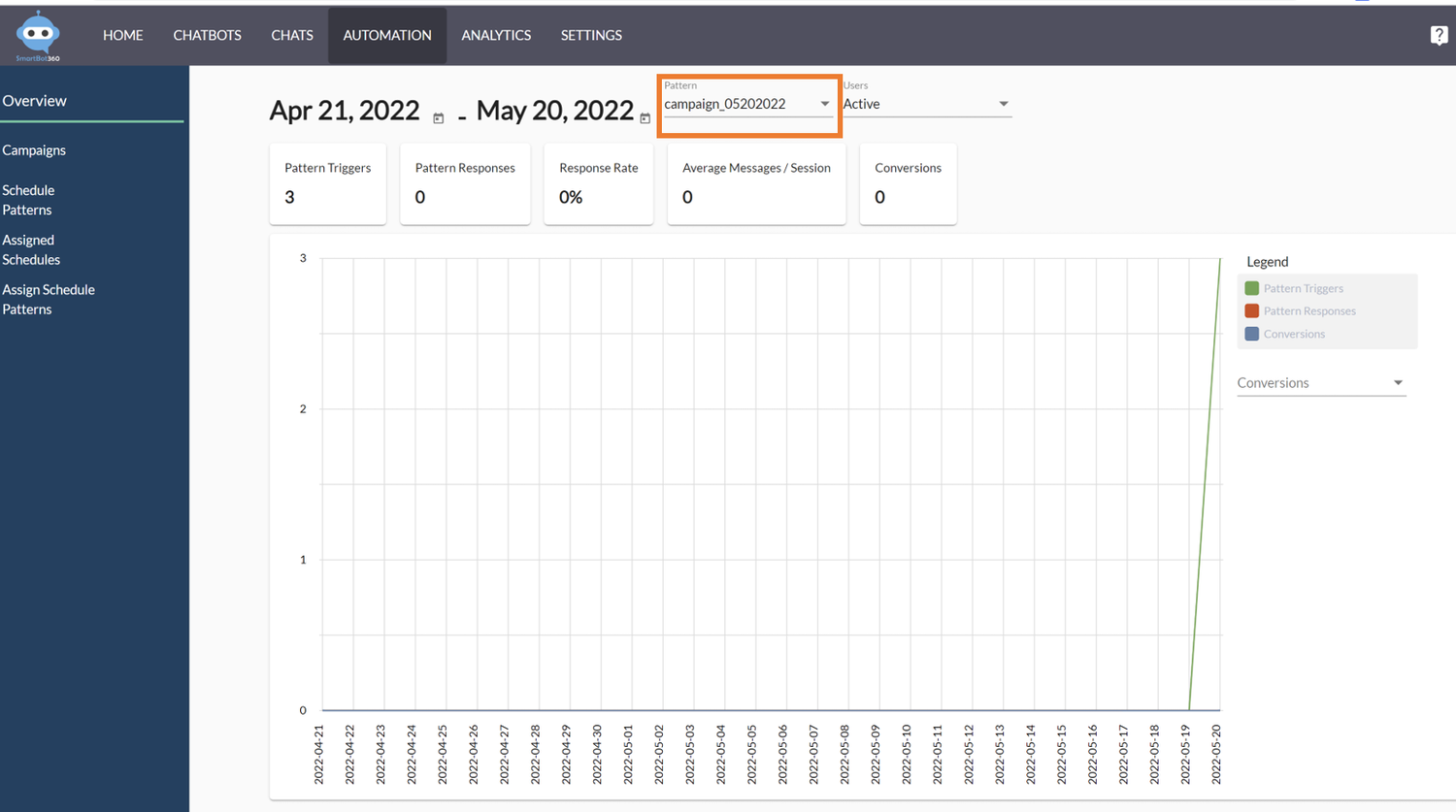
To view the campaign analytics, go to AUTOMATION→Overview, and select the campaign name as shown below.
Advanced: If you need more complex campaign flows (e.g. trigger botA now and then botB after 5 days), use [Schedule Flows](https://smartbot360.com/documentation/schedule-flow).
- [Planning](https://support-portal.klaunch.io/migration/knowledge/planning?hsLang=en#main-content)
- [Ideas & Design](https://support-portal.klaunch.io/migration/knowledge/planning?hsLang=en#ideas-design)
- [Misc](https://support-portal.klaunch.io/migration/knowledge/planning?hsLang=en#misc)
- [Training](https://support-portal.klaunch.io/migration/knowledge/training?hsLang=en#main-content)
- [SMS Messaging](https://support-portal.klaunch.io/migration/knowledge/training?hsLang=en#sms-messaging)
- [Flow Bots](https://support-portal.klaunch.io/migration/knowledge/training?hsLang=en#flow-bots)
- [Bots](https://support-portal.klaunch.io/migration/knowledge/bots?hsLang=en#main-content)
- [Management](https://support-portal.klaunch.io/migration/knowledge/bots?hsLang=en#management)
- [Building](https://support-portal.klaunch.io/migration/knowledge/bots?hsLang=en#building)
- [Advanced](https://support-portal.klaunch.io/migration/knowledge/bots?hsLang=en#advanced)
- [Engagement](https://support-portal.klaunch.io/migration/knowledge/engagement?hsLang=en#main-content)
- [Chat](https://support-portal.klaunch.io/migration/knowledge/engagement?hsLang=en#chat)
- [Campaigns](https://support-portal.klaunch.io/migration/knowledge/campaigns?hsLang=en#main-content)
- [SMS Campaigns](https://support-portal.klaunch.io/migration/knowledge/campaigns?hsLang=en#sms-campaigns)
- [Analytics](https://support-portal.klaunch.io/migration/knowledge/analytics?hsLang=en#main-content)
- [Export Data](https://support-portal.klaunch.io/migration/knowledge/analytics?hsLang=en#export-data)
- [APIs](https://support-portal.klaunch.io/migration/knowledge/apis?hsLang=en#main-content)
- [Webhooks](https://support-portal.klaunch.io/migration/knowledge/apis?hsLang=en#webhooks)
- [Integrations](https://support-portal.klaunch.io/migration/knowledge/integrations?hsLang=en#main-content)
- [Supported](https://support-portal.klaunch.io/migration/knowledge/integrations?hsLang=en#supported)
- [Home](https://7939462.hs-sites.com/)
[](https://www.klaunch.io/explore-trial)
Let's have a conversation.
Copyright © 2026, LST Health Tech